
DeMinds macOS Desktop: What's Different?
Already using Designed for iPad on Mac? Here's what the standalone desktop app changes, whether it's worth switching, and how to prepare your existing work.
DeMinds has worked on Mac for some time. With Designed for iPad on Mac, you can already import documents, explore the Universal Mind Map, edit in Markdown or Rich, work side by side, and choose between Local and iCloud Workspaces. The standalone macOS Desktop app does not bring these features to Mac for the first time.
The more meaningful change is how DeMinds fits into the Mac itself: a standalone desktop app with native menus and window behavior for the same content workflow, plus a choice of where its Local Workspace is stored on your Mac.
1. What changes—and what stays the same?
| What matters to you | Designed for iPad on Mac | Standalone macOS Desktop |
|---|---|---|
| Content workflow | Import, Universal Mind Map, Markdown/Rich, side-by-side reading, save, Continue Working | The same underlying workflow, not a new document format |
| Mac system controls | Uses the controls available to the iPad app running on Mac | Organizes everyday actions through native Mac menus, window controls, and keyboard commands |
| Local and iCloud | Lets you select and manage either Workspace | Keeps the same Workspace model; iCloud still depends on Apple services |
| Local storage location | Managed within the existing app environment | Lets you switch between the App Default Location and one explicitly selected, authorized Custom Location |
| Existing local data | Resides in the older app's own environment | Installation or the same Apple Account does not, by itself, establish automatic access, migration, or merging |
What hasn't changed is the content workflow: import → Universal Mind Map → Markdown → save → Continue Working. What changes is how you access and control that workflow on Mac, and how clearly you can choose which location holds the active Local Workspace.
The standalone app uses its own desktop runtime and macOS system capabilities for menus, files, windows, and local storage. This is not a complete rewrite of the DeMinds interface as a purely native Mac app, nor does it require learning a different Markdown or mind map workflow.
2. Why choose a standalone Mac app?
Keep the familiar work; use Mac controls to manage it. Importing, mapping, editing, saving, and reviewing history follow the same content model. The standalone app puts common commands in the native Mac menu and window system, with clearer entry points and focus behavior for extended desktop sessions. Menu access does not bypass the existing content-protection or entitlement rules.
Choose where your local work lives. Local versus iCloud answers which Workspace you're using. The standalone desktop app adds a second choice: which authorized location the Local Workspace uses on this Mac. That matters if you want more control over where your Mac-based work is kept. It does not turn DeMinds into a manager for arbitrary Markdown folders or provide automatic synchronization with external files.
Your work does not become a Mac-only format. Maintainable Markdown, its Universal Mind Map, and the project's history remain central. What's new is the desktop interaction and location control—not a second content system.
3. Who benefits from switching—and who can stay where they are?
The standalone app is a more compelling choice if you spend long sessions organizing documents on Mac, regularly use menus and keyboard shortcuts, or want to choose a specific location for your Local Workspace.
If Designed for iPad on Mac already suits you—especially if you mainly use the existing map, Markdown editor, side-by-side reading, or iCloud—there is no need to switch just to obtain those features again.
Availability of entitlements, system sharing, external services, and ways to carry over existing data must still be checked against the actual release build you intend to install. Implemented code or TestFlight evidence does not establish that every iOS-like behavior has passed acceptance testing in the same Mac release.
4. The Mac menu commands worth knowing first
You only need to get familiar with a few new system entry points; the rest of DeMinds works much as before.
| When you want to… | Where to go | What is different |
|---|---|---|
| Start a Markdown document | File → New Markdown, or ⌘N | A native menu command and shortcut open the existing draft-and-first-save workflow |
| Import a file, folder, or link | File → Import File… / Import Folder… / Import from Link… | Existing import routes are grouped in the native File menu |
| Save, find, or format | ⌘S, Edit → Find… / Format, and related commands | Commands respect focus, editing state, and read-only boundaries |
| Work with text and the map | The View menu and familiar in-app controls | Access the existing reading, editing, and side-by-side surfaces |
| Check or change Workspaces | The Workspace menu | Find Local/iCloud management and Mac-specific local location controls together |
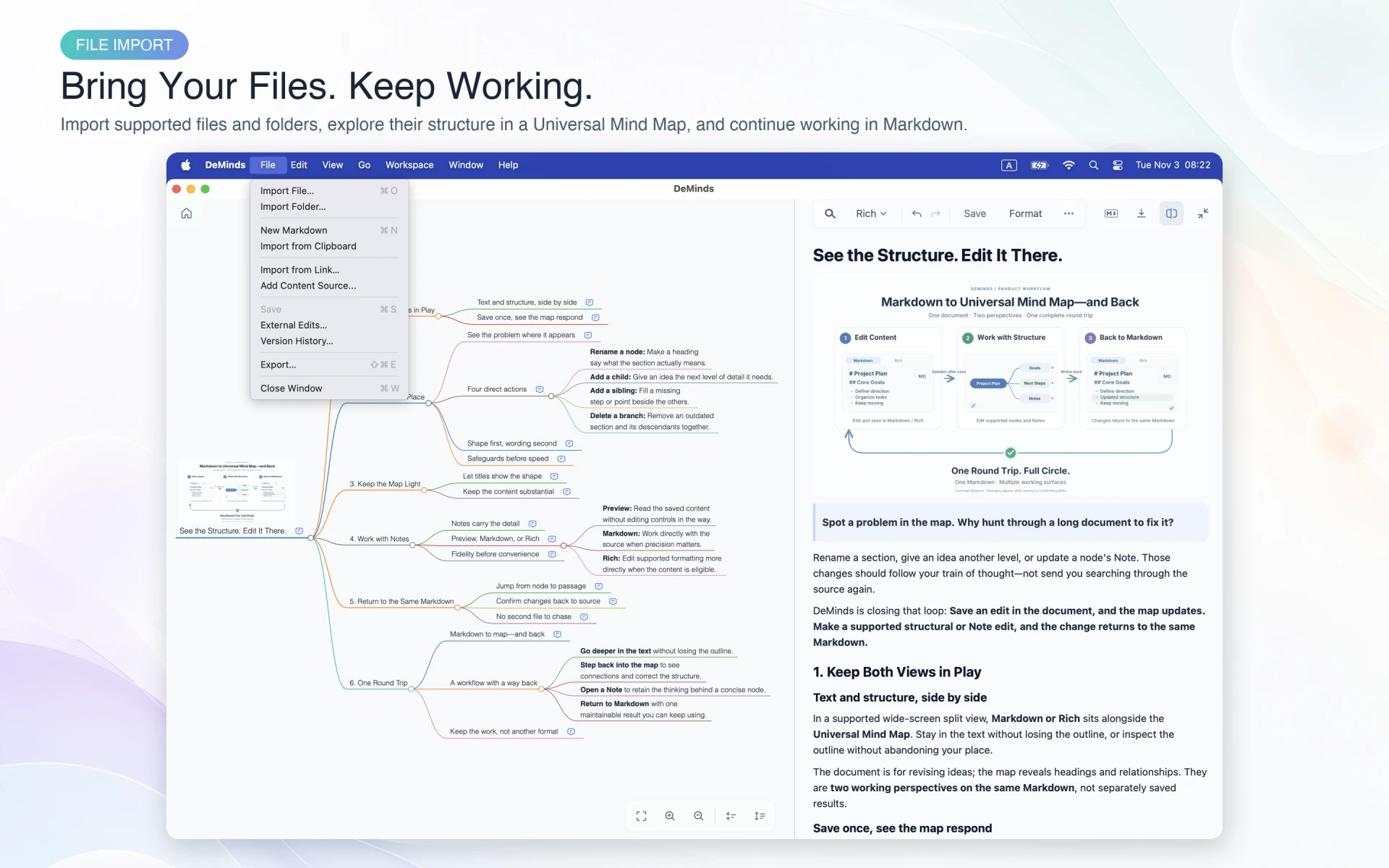
The File menu brings together familiar import commands. Importing, Markdown editing, and the map already worked in Designed for iPad on Mac; the native menu is the desktop-specific change.
Closing a window is not the same as quitting the app. After you close the main window—usually with ⌘W—DeMinds may continue running. To quit, choose DeMinds → Quit DeMinds (⌘Q). Follow any prompts about unsaved drafts or unfinished imports and saves. A disabled menu item normally means the current document, focus, or permission does not allow that command.
5. The key Mac addition: choosing your Local Workspace location

These are two levels of choice—not three peer Workspaces.
First, select Local Workspace from Continue Working or the Workspace menu. If iCloud Workspace is currently active, Local Workspace Location… is unavailable; switch to Local first.
Next, open Workspace → Local Workspace Location…, or use the equivalent entry in the Continue Working Workspace selector:
- App Default Location: Use the standalone desktop app's default Local Workspace.
- Custom Location: Authorize a parent folder with the macOS folder picker. DeMinds uses a dedicated Local Workspace within it. You can return to a previously authorized custom location through the supported controls.
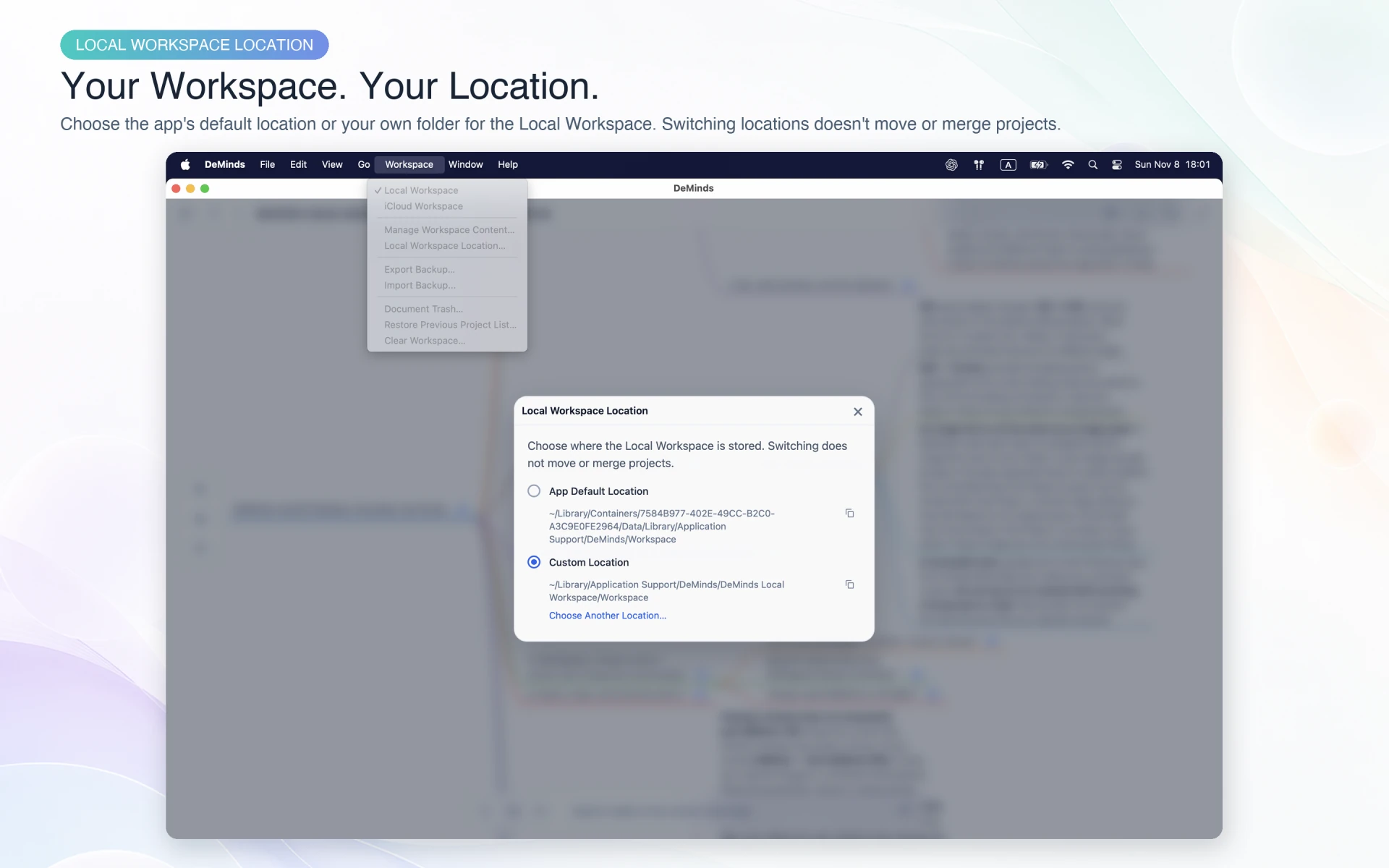
The Mac app lets you choose the default or an authorized custom location for your Local Workspace. Changing the selection does not move, copy, or merge Projects.
Switching locations means opening the Workspace at the other location.
It does not copy, merge, or migrate projects.
To carry projects to another location, use an export/import path verified in the build you're using. A Standard Markdown Bundle can include your current Markdown, project assets that can be packaged, and applicable information for reconnecting a returned file to its original project. It is not a complete transfer of Workspace history, metadata, or identity.
Do not try to migrate projects by moving internal databases, indexes, or control files yourself. If folder authorization is lost, the folder is moved, or a Workspace identity cannot be verified, follow the app's reauthorization or recovery prompts. Do not overwrite the original location with an empty one.
6. Before switching: a checklist for existing Mac users
The older Designed for iPad on Mac app and the standalone desktop app must not be assumed to share the same local storage or app identity. Even on the same Mac and Apple Account, safe access to existing data needs evidence from the actual release configuration.
Before you switch, check the following:
- [ ] Identify your current Workspace. Is the older app using Local or iCloud? Where are your important projects actually stored?
- [ ] Keep a verified copy. Export important projects as a Standard Markdown Bundle or through another confirmed export route. Open the results and check that the required assets are present. Do not treat a bundle or a single Markdown file as a full Workspace Backup if you need complete history, metadata, or Document Trash state.
- [ ] Verify the target build's supported paths. Which file/bundle imports, old Local-data handoff routes, iCloud reads, or backup restores have actually been validated in the Mac build you plan to use? Check how File → Import File… and External Edits… behave with the relevant files—not just whether their menu items exist.
- [ ] Preserve the old environment until the handoff is safe. Where possible, keep the previous app and its data until a safe way to access or carry over its Local content has been verified, and retain independently checked exports. Before installing or updating, confirm how the Mac App Store handles replacement of the older app form, updates, and local data. Do not assume the two forms can coexist indefinitely.
- [ ] Allow time for iCloud. Save on the original device, wait for Apple services to sync and for files to become available on the next device, then resume editing. Avoid simultaneous changes to the same project from both devices.
Local and iCloud require different approaches
If your existing projects are in Local Workspace: Do not assume the new app can read the old app sandbox. Check the target build's evidence and any supported prompts for existing Local data. If there is no confirmed safe path, use a verified project export/import route to carry the content forward. Keep the original data intact if the situation is uncertain; do not directly copy the internal Workspace files.
If your existing projects are in iCloud Workspace: The same Apple Account does not guarantee immediate access or conflict-free changes. Wait until the cloud files are available, confirm the Workspace and project list in the new app, and only then continue editing. Simply selecting iCloud will not merge projects from the Mac's Local Workspace.
If you need the full Workspace history: Exporting a Workspace Backup and importing/restoring one are separate operations. Restore involves Plus, integrity checks, and acceptance testing on the target desktop release. If complete restore has not been enabled and verified in the installed build, it should not be part of your assumed migration path.
7. What this change means for working on Mac
DeMinds still helps turn files, web content, and mind maps into Markdown you can maintain: see the structure, edit the content, save, and return to it later. That purpose has not changed with the Mac runtime.
The standalone macOS Desktop app gives familiar work more Mac-native controls and a clearer choice of Local Workspace location. If you're an existing user, the real decision isn't which version lists more features. It's whether the Mac interaction is useful to you—and whether your data can be carried over safely in the release you're using. Remember that Mac windows and apps have different lifecycles: ⌘W closes a window; ⌘Q quits DeMinds. Confirm your changes are saved before switching, updating, or quitting.
For step-by-step instructions, see the DeMinds macOS Desktop Everyday Use Guide. For in-depth Markdown editing and Local/iCloud merge or replacement behavior, refer to the dedicated Editor and Workspace guides.