
DeMinds macOS Desktop: Everyday Use Guide
Bring content into DeMinds on Mac, read and refine it, and keep it as maintainable Markdown—with native menus, file workflows, and Workspace controls.
DeMinds macOS Desktop is a standalone Mac app. It doesn't introduce a different content workflow from DeMinds on iPhone, iPad, or Designed for iPad on Mac. The Universal Mind Map helps you see structure, Markdown holds the content you can maintain, and Continue Working brings you back to saved projects. The desktop app connects those familiar capabilities to Mac menus, windows, and file handling, and adds a way to choose the location of your Local Workspace.
This is a day-to-day reference. Start with the common commands or jump straight to saving, Workspaces, history, and export. If you're already using Designed for iPad on Mac and want to understand what changed—or how to approach existing data—read DeMinds macOS Desktop: What's Different? first.
1. Get oriented: menus, windows, and Workspaces
The content views will look familiar. The more obvious change is the native menu bar at the top of your Mac screen. It groups document creation, import, editing, reading, Workspace management, and window actions into Mac-style commands.
| Menu | What you'll use it for | Keep in mind |
|---|---|---|
| DeMinds | Appearance, language, quitting the app, and related app controls | Changing a preference doesn't save the current document |
| File | New Markdown, import, save, export, history, and External Edits | Commands depend on the active Project and system state; backup import and publishing have separate availability or entitlement boundaries |
| Edit | Undo/Redo, clipboard actions, Find, and Format | Commands act on the control that currently has focus |
| View | Markdown, Universal Mind Map, side-by-side layout, Focus Mode, reading size, and related views | The reading surface, editing mode, and Mac window zoom are different controls |
| Go | Continue Working and supported project navigation | This is not simply Finder's Recents list |
| Workspace | Local/iCloud selection, content management, and Local Workspace Location | Different commands may affect different scopes of content |
| Window | Minimize, zoom, full screen, and related window actions | Closing a window does not necessarily quit DeMinds |
| Help | Guides, support, and privacy resources | External links open their actual destinations |
Menu items may become available or unavailable depending on the document, selection, editor mode, Workspace, and any operation in progress. A disabled menu item does not mean your content has been lost. First check whether you're on the Home screen, in read-only Preview or Version History, in a dialog, or in the middle of another operation.
A typical working session
- Use the File menu to import a file or folder, or choose New Markdown.
- Explore the structure in the Universal Mind Map and choose Preview, Markdown, or Rich to read or edit the document.
- Explicitly save your changes, then review the Working Copy and map.
- Reopen the saved Project from Continue Working next time, or export it when you need to take the result elsewhere.

This content workflow already exists across DeMinds platforms. On macOS Desktop, the main differences are the native entry points and Local Workspace location controls.
2. Create, import, and open content
Start a Markdown document
Choose File → New Markdown or press ⌘N to open a new draft. Write in the editor, then save for the first time to create a Project. Opening a blank draft does not create a saved Project on its own. Starting a draft from an existing in-app entry point follows the same save and Project-creation rules.
Import from Finder or the system picker
- File → Import File…: Select supported files such as Markdown, plain text, compatible mind maps, DOCX, HTML, and OPML.
- File → Import Folder…: Choose supported folder content, such as a Markdown Package or a recognizable collection of notes. ZIP files follow the appropriate import route based on what's inside.
- Finder → Open With → DeMinds: For file types that macOS recognizes and the installed build is associated with, Finder may provide an opening/import route. Not every format, folder package, or Finder state uses the same entry point. Availability depends on the file associations in the installed signed build and your macOS version. If DeMinds isn't listed under Open With, use File → Import File… inside the app. For supported folders or folder packages, use Import Folder….
These formats and Finder-based routes are not inventions of the standalone app. The Mac-specific change is how the native File menu brings existing import workflows together. Import fidelity still depends on source structure, assets, access, and file size. Saving after import updates the DeMinds Project's working Markdown; it does not directly rewrite the original file in Finder.
Links, web previews, and the clipboard
Choose File → Import from Link… to enter a compatible web page, public Markdown document, research article, or AI share link. For eligible pages, Web Import Preview lets you inspect the content before confirming an import. Access restrictions, scripts, and network conditions may still affect how much content can be retrieved.
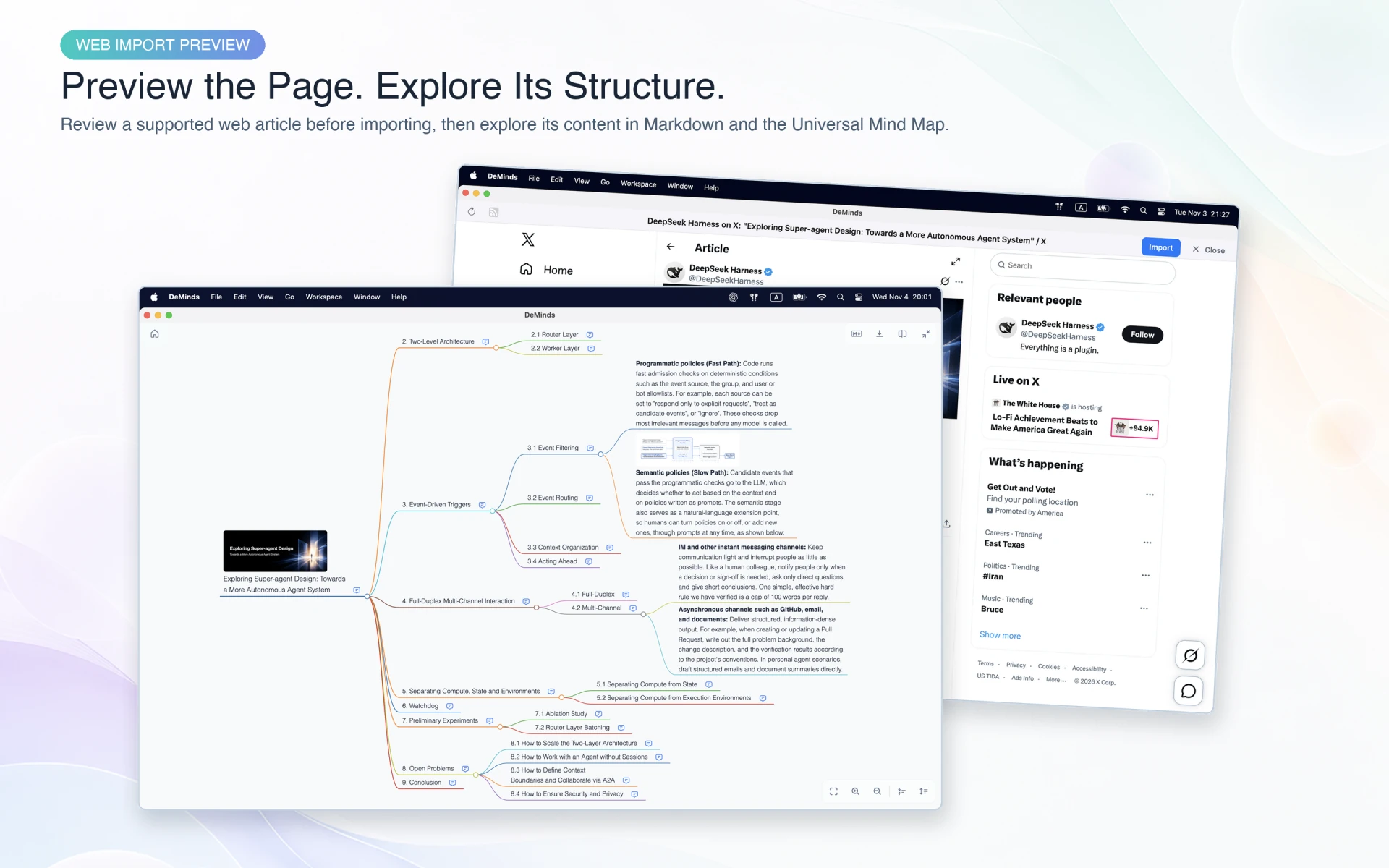
Preview an eligible page before importing, then explore its content in Markdown and the Universal Mind Map. Not every page on the same site is necessarily supported.
File → Import from Clipboard brings supported clipboard content into a new import workflow. That's different from pressing ⌘V while editing the current document. Whether text, formatting, images, or links are available depends on what the source app puts on the clipboard and what DeMinds can handle.
For Content Sources such as supported Feeds and GitHub READMEs, you request update checks yourself. Remote links, iCloud, and online assets may require a connection; local-first does not mean every web feature works offline.
3. Read, edit, and work side by side
In an open Project, Markdown is the maintainable document and the Universal Mind Map is a structural view of it. In a sufficiently wide window, use Side-by-Side to read or edit the document alongside the map. Node navigation helps you move between the outline and the relevant section. The map, side-by-side reading, and editing already existed in the older Mac app form; they are not new standalone-desktop features.
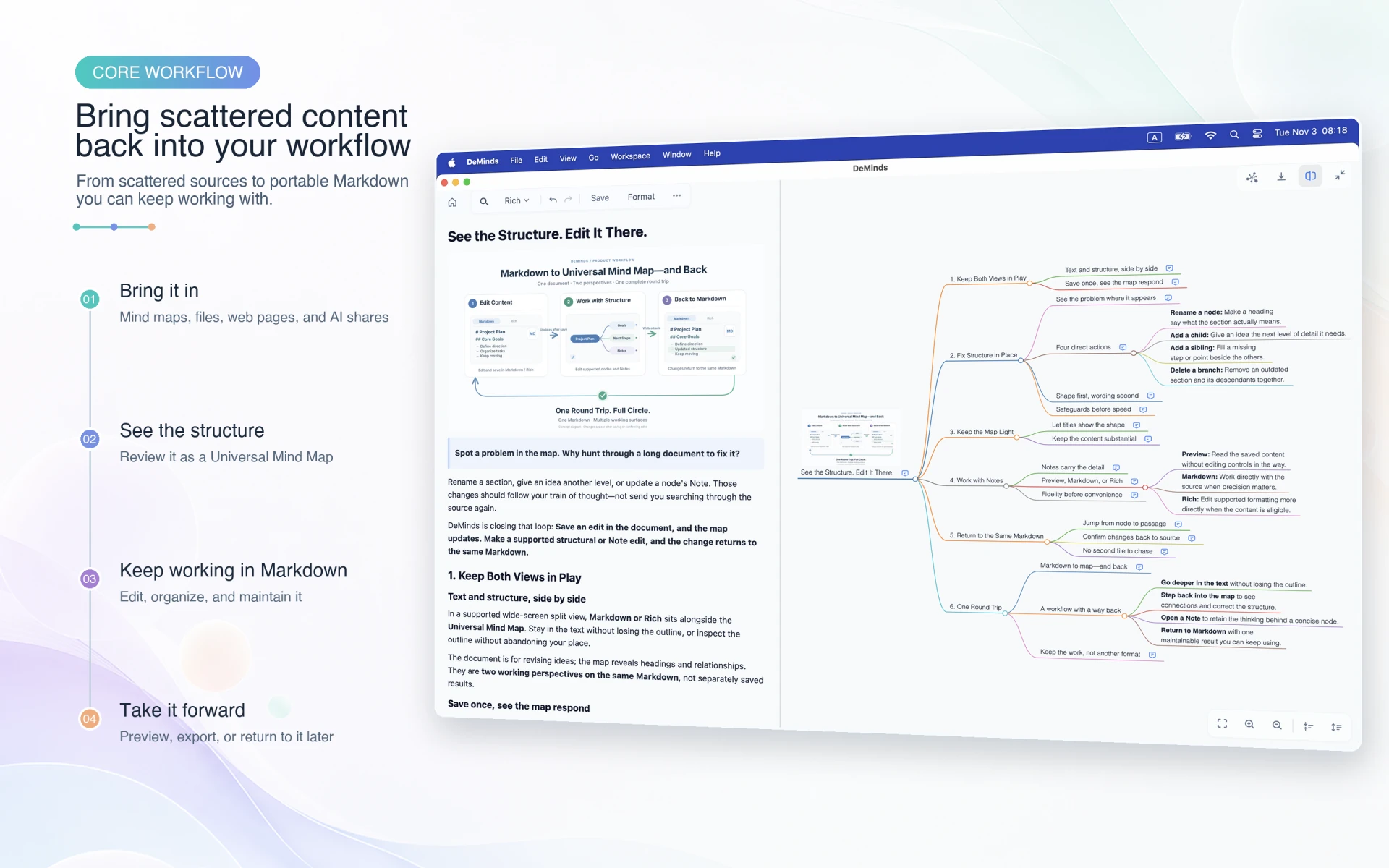
The wide Mac view brings the saved document and its structure together. The map reflects saved Markdown; it is not a separate document you must keep in sync.
| Document mode | Best for | Important boundary |
|---|---|---|
| Preview | Reading the body, images, supported math, tables, and code | Read-only; seeing a draft rendered does not mean it's saved |
| Markdown | Precise edits to headings, links, code, and specialized syntax | Direct control of the Working Markdown source |
| Rich | Visual edits to compatible text, lists, and ordinary tables | Requires compatibility and round-trip checks; some complex tables, algorithms, and protected structures are read-only |
Use the document toolbar, or the appropriate View → Markdown → Editor Mode controls, to switch between document modes. Universal Mind Map, Side-by-Side, Focus Mode, and map zoom are related but distinct View actions. Resizing the Mac window, changing reading text size, and zooming a map node are not interchangeable.
Rich is not a promise of lossless WYSIWYG editing for every Markdown document. Rich has a 256 KiB limit on both input and output, along with content-safety checks. If a document cannot safely enter Rich, use its Markdown source instead. Follow the app's compatibility message rather than trying to bypass a protected editing path.
Edits, images, and saving
- ⌘S saves eligible changes. ⌘Z / ⇧⌘Z undo and redo actions in the relevant editing session. When focus is in a search box, dialog, or document body, the command may act on a different target.
- Edit → Format provides formatting actions appropriate to the current editing mode and selection. Don't force formatting commands in read-only states or while an input method is composing text.
- An image link is not the same as an image asset. A Markdown path alone does not establish that the image file is part of your Project. Local images actually brought in through supported import or explicit addition, then committed when the Project is saved, can be reused within that Project. A remote image reference may still depend on its original server; the file itself may not be stored in the Project or included in every export. Project images are not a cross-project library.
- A successful save updates the Current Working Copy; the Universal Mind Map then reflects the confirmed content. Do not rely on an unsaved draft surviving a forced quit or crash. Saving does not overwrite the external source file you originally imported.
4. Continue Working, Version History, and External Edits
Continue Working is the entry point for saved Projects—not merely a list of recently opened system files. You can organize Projects using the supported categories and stages, then return to them for reading or editing.
When you need to review changes, open Version History to inspect, compare, or restore an eligible version of the Working Copy. History is different from undo and redo in your current editing session. The Source File, Baseline, current content, and historical versions have distinct roles; Version History is not unlimited version control.
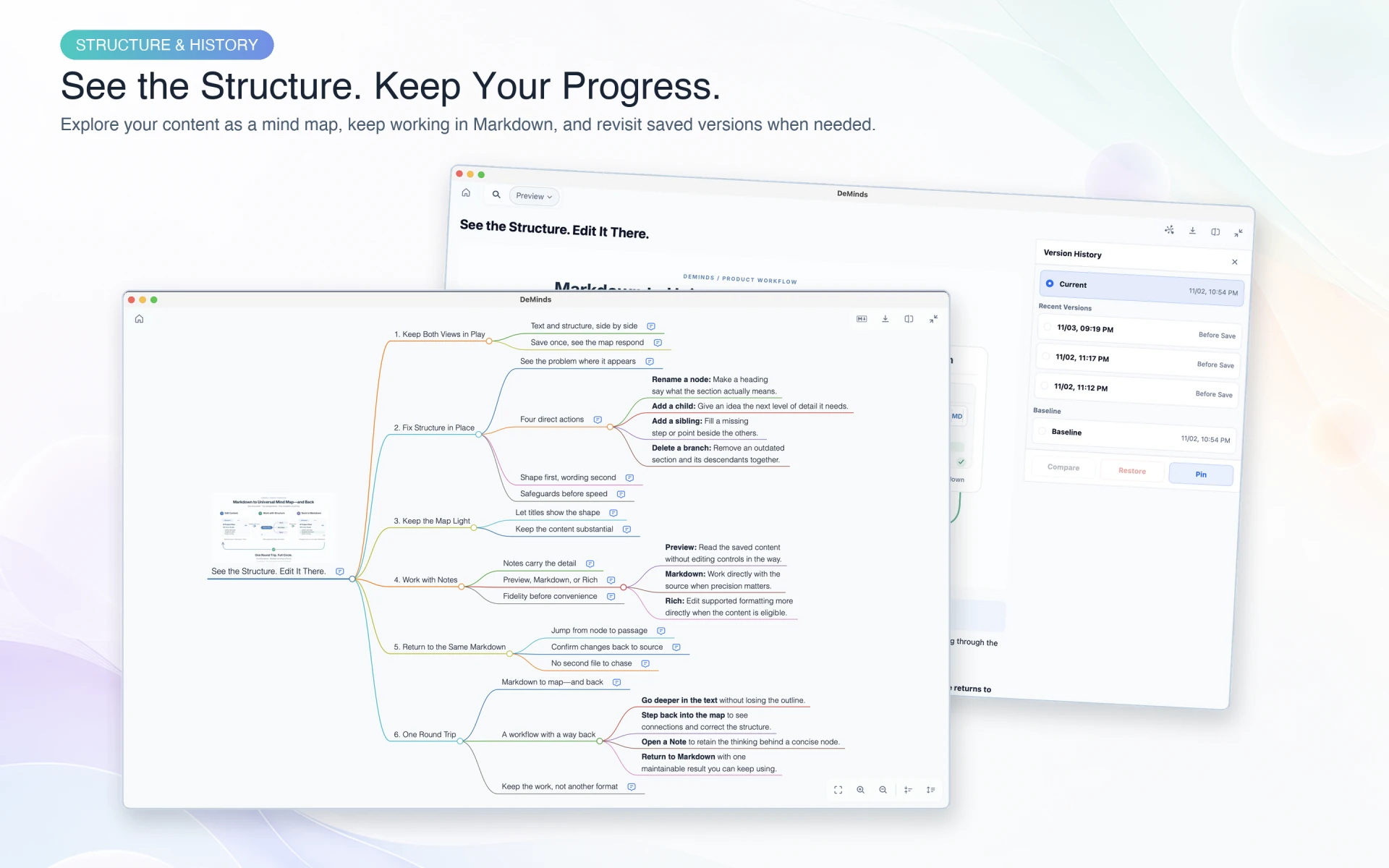
Use the map to navigate the content and Version History to review saved states. They serve different purposes within the same Project.
Continue Working also provides appropriate Document Trash and Project-list recovery controls. Moving a Project to Trash, restoring a Project, and clearing a whole Workspace have different scopes. Before using Clear Workspace, confirm which Workspace is active and that you have the necessary backup. A visible menu command alone is not proof that every recovery route has completed release acceptance testing.
If you revise exported Markdown in another editor or with an external AI tool, use the available External Edits… entry to select a compatible Markdown file or Standard Markdown Bundle. DeMinds checks the supported project association and validity before presenting the appropriate compare/confirm workflow. This is not automatic, two-way synchronization with external files. If DeMinds cannot reliably identify the Project or validate the returned content, it will not silently overwrite the Current Working Copy. Do not use External Edits as an automatic sync solution.
5. Workspaces: choose Local or iCloud, then choose the Local location
These are two separate choices, and they're easy to confuse on Mac.

First: which Workspace is active—Local or iCloud?
Use the Workspace selector in Continue Working, or the native Workspace menu, to choose Local Workspace or iCloud Workspace. Only one is active at a time.
An ordinary Workspace switch does not copy, merge, or replace Projects. To bring selected Projects from the other Workspace into the current one, use Manage Workspace Content… and Add Selected Projects from the appropriate source. Projects whose IDs already exist in the destination—including those in Document Trash—are not overwritten. Replace Entire Workspace is a separate, destructive operation that uses the complete source Workspace and requires explicit confirmation. The selection used for adding Projects does not limit the scope of replacement.
iCloud depends on your Apple Account, Apple services, and file availability. Saving on one device does not mean another device has immediately completed syncing. Before editing from a different device, confirm the first device has saved its changes and wait until the receiving device's content is ready.
Second: where is the Local Workspace stored on this Mac?
The standalone macOS Desktop app also offers Workspace → Local Workspace Location…, with an equivalent entry in the Continue Working Workspace selector. You can choose:
- App Default Location: The default Local Workspace managed by the standalone desktop app.
- Custom Location: A parent folder you authorize through the macOS picker. DeMinds uses a dedicated Local Workspace within it, and can return to a previously authorized custom location through the supported controls.
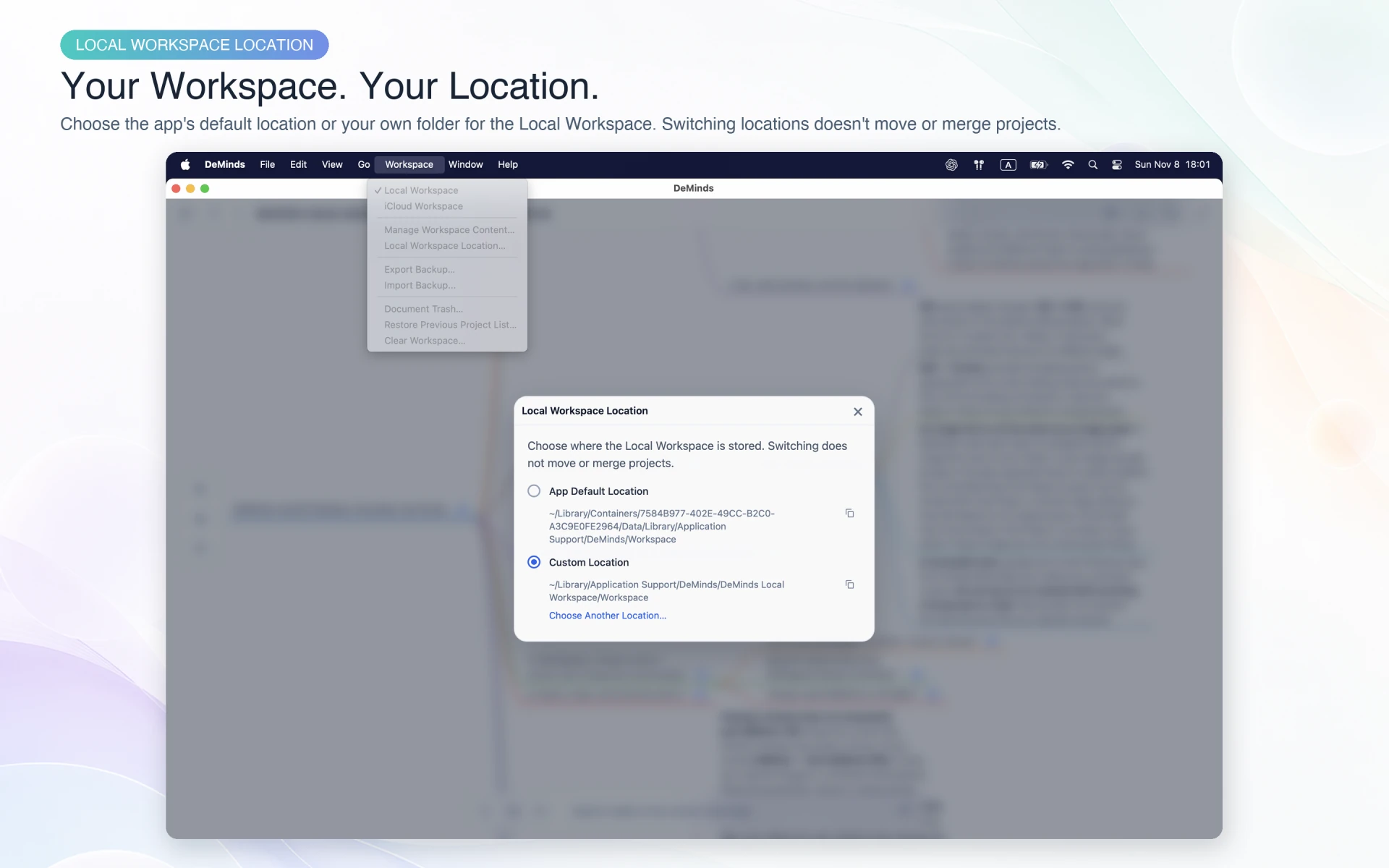
The Mac app lets you choose the default or an authorized custom location for your Local Workspace. Changing the selection does not move, copy, or merge Projects.
Switching locations opens the Workspace at the selected location; it does not migrate, copy, or merge Projects. This is not a general-purpose manager for unlimited local Workspaces, and it does not turn every Markdown file in that folder into a live, two-way editable document. While iCloud is active, the local location control is disabled; switch back to Local first.
To move Projects between locations, use an export/import path confirmed for the build you're using. Don't treat the location selector itself as a migration tool. The difference between a Standard Markdown Bundle and a full Workspace Backup is explained in the next section. If folder authorization expires or a Workspace identity or recovery warning appears, follow the product prompts. Don't move internal indexes, databases, or control files by hand.
Already used DeMinds on this Mac?
Designed for iPad on Mac and the standalone Desktop app are different app forms. Whether they can access the same Local data depends on the target build and installation route; don't assume continuity based on an identical app name or Apple Account. See the difference and switching guide before changing environments.
6. Export, share, and Continue with AI
Choose File → Export… and select an available output for the current Project, entitlement, and operating environment. The options serve different purposes:
| What you want to do | Choose | What to expect |
|---|---|---|
| Keep editing in another app | Markdown File | Takes the current Markdown; does not automatically include every local image file |
| Carry editable content and assets | Standard Markdown Bundle | Can include current Markdown, packageable Project assets, and applicable information for reconnecting returned work to its Project; not a complete Workspace Backup |
| Produce something to read or present | PDF, Full Mind Map PNG | Availability depends on the platform, document state, and Standard/Plus entitlement |
| Share a read-only interactive result | Interactive View | Read-only; does not provide encryption, access controls, or collaborative online editing |
A Standard Markdown Bundle can include the current Markdown, Project assets that can be packaged, and applicable information for reconnecting a returned file to its original Project. It does not transfer the entire Workspace's history, metadata, or identity. To preserve those broader Workspace states, check the separate Workspace Backup and verified restore paths rather than treating a bundle as a complete backup.
Continue with AI… prepares a file you can take to an external AI tool. You can request Structure Optimization, Structure and Expression Optimization, and eligible translation tasks. Choosing the feature does not make DeMinds automatically upload your entire Workspace, call an AI model, or apply a returned result. You decide whether to upload the file to an external service, which AI to use, and whether to accept any returned changes. Check the external service's data-handling terms when appropriate.
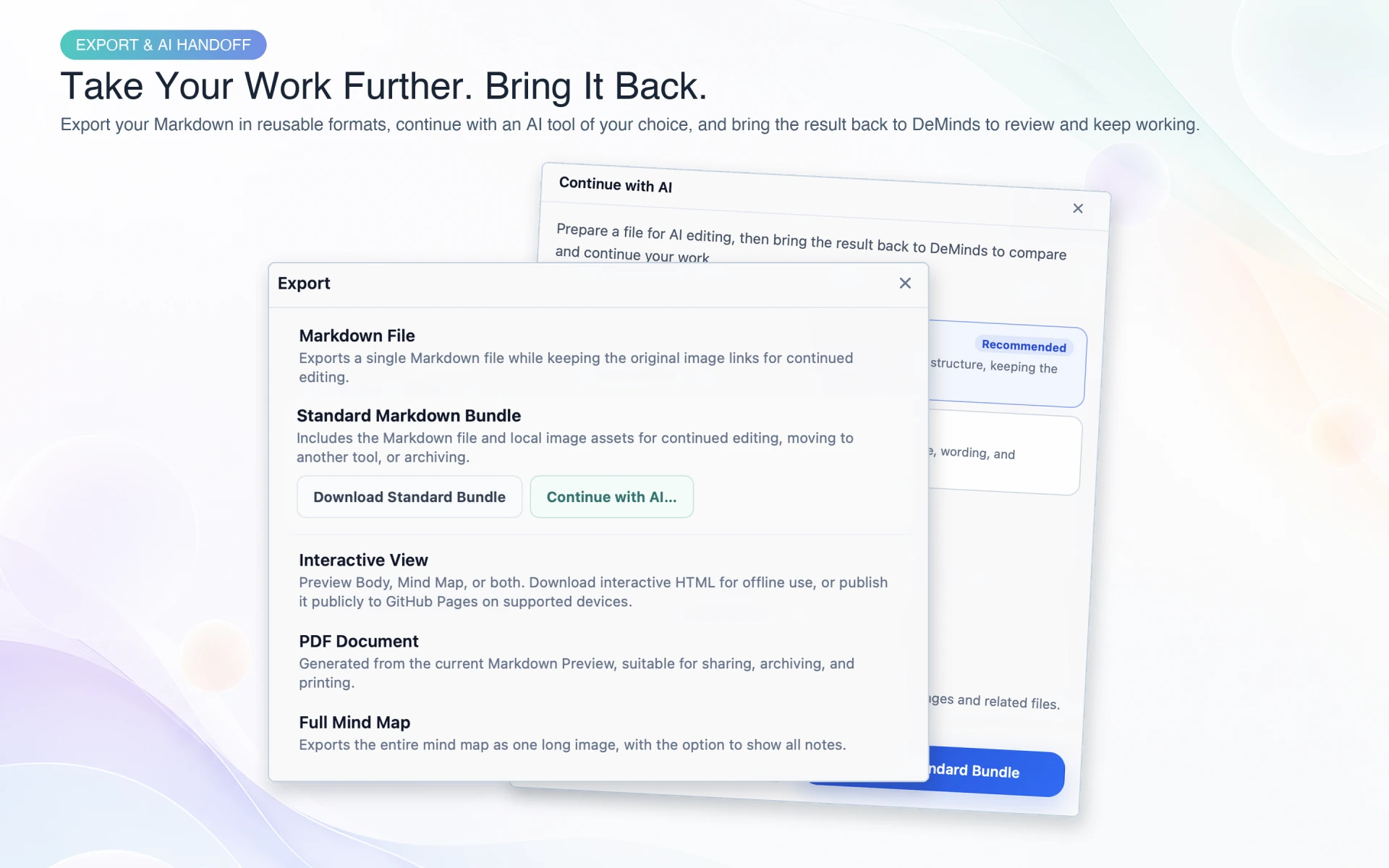
Export reusable Markdown or prepare a file for an external AI tool. Preparing the handoff neither uploads your content nor automatically accepts returned edits.
Standard and Plus at a glance: Markdown File, Standard Markdown Bundle, PDF export, and Continue with AI are part of Standard. Full Mind Map PNG, Interactive View creation, and certain portable Markdown options require Plus. Workspace Backup export is part of Standard; import/restore requires Plus and remains subject to availability and acceptance testing in the target Mac release build. Use the capabilities and entitlements confirmed in your installed build.
Workspace Backup export and import/restore are distinct workflows. The latter has its own Plus and release-validation conditions. GitHub Pages publishing, purchasing or restoring entitlements, and system share extensions also depend on the installed build, permissions, and actual testing. Don't treat those options as mandatory steps for every Mac user without verifying their availability.
7. Mac windows, keyboard commands, and system behavior
- Closing a window does not necessarily quit DeMinds. ⌘W closes the current main window; the app may remain running. To quit, choose DeMinds → Quit DeMinds (⌘Q). If there are unsaved changes or unfinished imports/saves, follow the actual Save, Cancel, or leave prompt.
- Window controls and content controls do different jobs. Minimize and full screen affect the Mac window. Map zoom affects the map; Reading Size changes the document's reading presentation, not the window size.
- ⌘F searches the supported content in the active context. It is not a promise of simultaneous full-text search across every Project, Note, and external file.
- Appearance and Language use the available app controls. Changing the interface doesn't change the stored Markdown. Quick Translation, where supported by the system and current reading surface, is temporary; it does not silently rewrite the document or save a translated version.
- System sharing, Finder Open With, web previews, and file pickers depend on the signed build, macOS, file associations, and user authorization. One working entry point doesn't establish compatibility with every format or external service.
8. Common questions: what to check first
| What happened? | Check this first |
|---|---|
| A file or folder won't open | Supported format, Finder association, cloud-file availability, required assets, and folder authorization |
| A menu command is disabled | Home screen, read-only Preview/History, an active dialog, an operation in progress, or Workspace permissions |
| The map doesn't reflect the change after saving | Whether save succeeded, whether you're viewing History or the Original Mind Map, and whether it's the same Project |
| Local Projects seem to have disappeared | Whether Local or iCloud is active, and whether Local points to App Default Location or Custom Location. Don't assume the data has been deleted |
| The Custom Location can't be accessed | Whether the folder was moved or system authorization expired. Reauthorize through the app; don't edit its internal control files |
| A change isn't showing up on another device | Whether the first device saved, the other device's iCloud files are ready, and Apple services have completed the relevant upload/download |
| I can't restore a backup or use a Plus action | Whether the installed build exposes the action, your entitlement, and the applicable validation status. Backup export success doesn't prove restore is available |
| DeMinds is still running after I closed its window | This is normal Mac window/app behavior. Use ⌘Q to quit completely |
9. Where to go next
This guide covers everyday use of the standalone Mac app. If you're deciding whether to leave Designed for iPad on Mac, or need to assess existing data, start with DeMinds macOS Desktop: What's Different?.
For more detail, see the dedicated DeMinds Editor guide, Local + iCloud Workspace guide, and Formats and Content guide. They cover editing behavior, cross-Workspace management, and source-format limitations respectively. The desktop app is not a separate content product with a different set of document rules.